
Deploying Windows Server 2025 Active Directory Domain Services from Scratch
A hands-on walkthrough of preparing Windows Server 2025, deploying a new Active Directory forest, configuring DNS and reverse DNS, and verifying the domain controller.
I'm currently working on a larger hands-on IT and infrastructure project, and one of the first steps was building a Windows Server 2025 Active Directory environment from scratch.
Instead of stopping once the installation wizard reported success, I wanted to verify that the environment was actually working: networking, DNS, Active Directory management, SYSVOL, NETLOGON, name resolution, service discovery, and domain-controller health.
This walkthrough documents that setup and the checks I used to understand how the different pieces of Active Directory fit together.
Lab Environment
| Component | Configuration |
|---|---|
| Operating System | Windows Server 2025 |
| Server Name | WIN2K25-DC03 |
| Active Directory Domain | mypersonal.lan |
| IPv4 Address | 172.16.131.21/24 |
| Default Gateway | 172.16.131.2 |
| DNS Server | 172.16.131.21 |
| Installed Roles | Active Directory Domain Services + DNS Server |
1. Preparing the Windows Server
Before installing Active Directory, I prepared the server with a predictable hostname and a static network configuration. A domain controller should not unexpectedly receive a different address from DHCP because domain members need to locate it consistently and its DNS records need to remain reliable.
Renaming the server
I renamed the system to:
WIN2K25-DC03
After changing the computer name, I restarted the server so the new hostname was fully applied before domain-controller promotion.
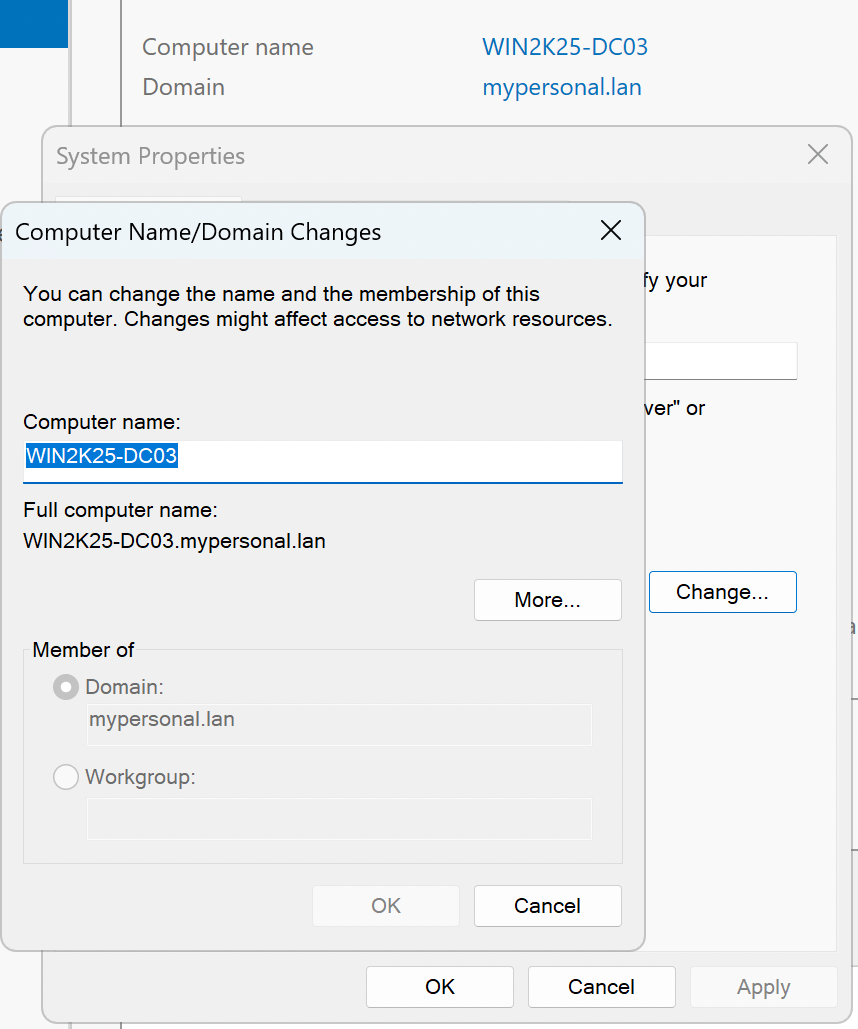
Figure 1. Server renamed to WIN2K25-DC03 before domain-controller promotion.
Assigning a static IPv4 address
Next, I configured the network adapter manually:
IP Address:      172.16.131.21
Subnet Mask:     255.255.255.0 (/24)
Default Gateway: 172.16.131.2
Preferred DNS:   172.16.131.21
The server points DNS to itself because it will host DNS for the new Active Directory domain.
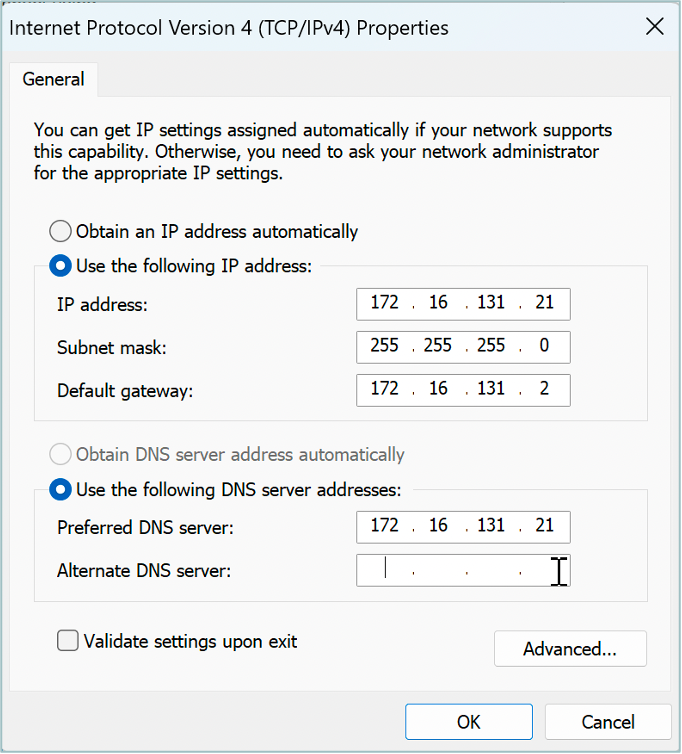
Figure 2. Static IPv4, gateway, and DNS settings assigned to WIN2K25-DC03.
2. Installing Active Directory Domain Services
With the server prepared, I opened Server Manager and used Add Roles and Features. I selected a role-based or feature-based installation, chose the local server, and enabled Active Directory Domain Services (AD DS).
Windows also installed the supporting administration components required to manage Active Directory. At this point the role was installed, but the machine was not yet a domain controller.
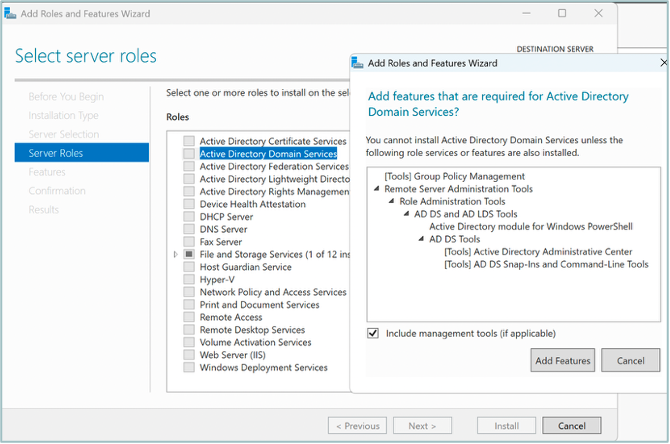
Figure 3. Active Directory Domain Services selected from the Server Roles page.
3. Creating a New Active Directory Forest
After the AD DS role finished installing, Server Manager presented the post-deployment option to promote the server to a domain controller.
Because this was a new isolated environment with no existing Active Directory forest, I selected:
Add a new forest
For the root domain name, I used:
mypersonal.lan
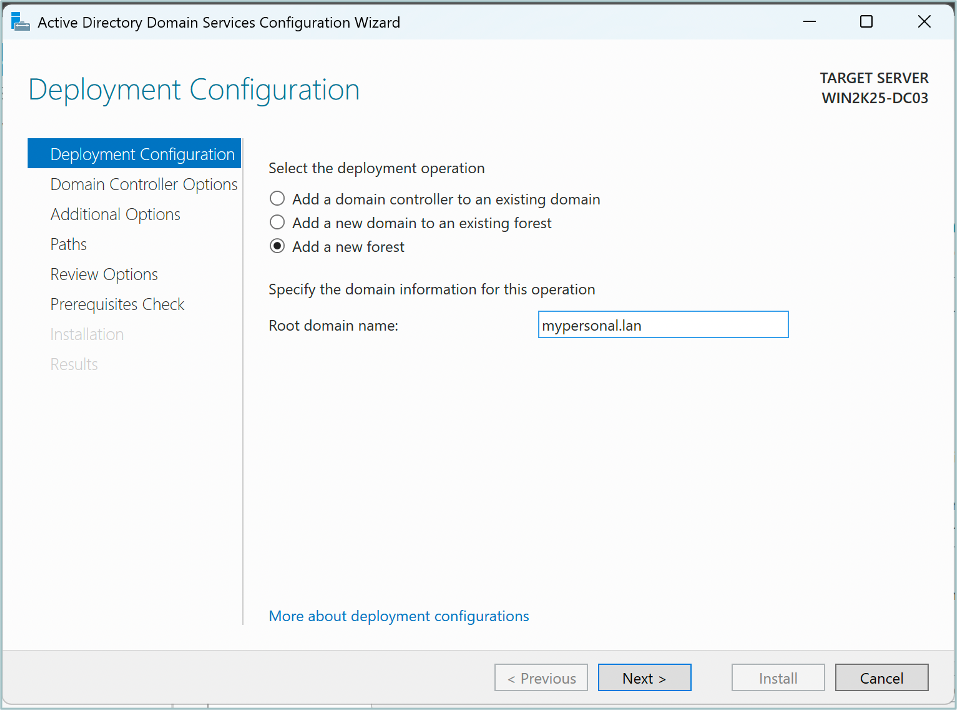
Figure 4. A new forest created with mypersonal.lan as the root domain.
4. Configuring Domain Controller Options
During promotion, I enabled DNS Server and Global Catalog and created a Directory Services Restore Mode (DSRM) password.
An important distinction is that the DSRM password is a recovery credential. It is separate from the account normally used to administer the domain after promotion.
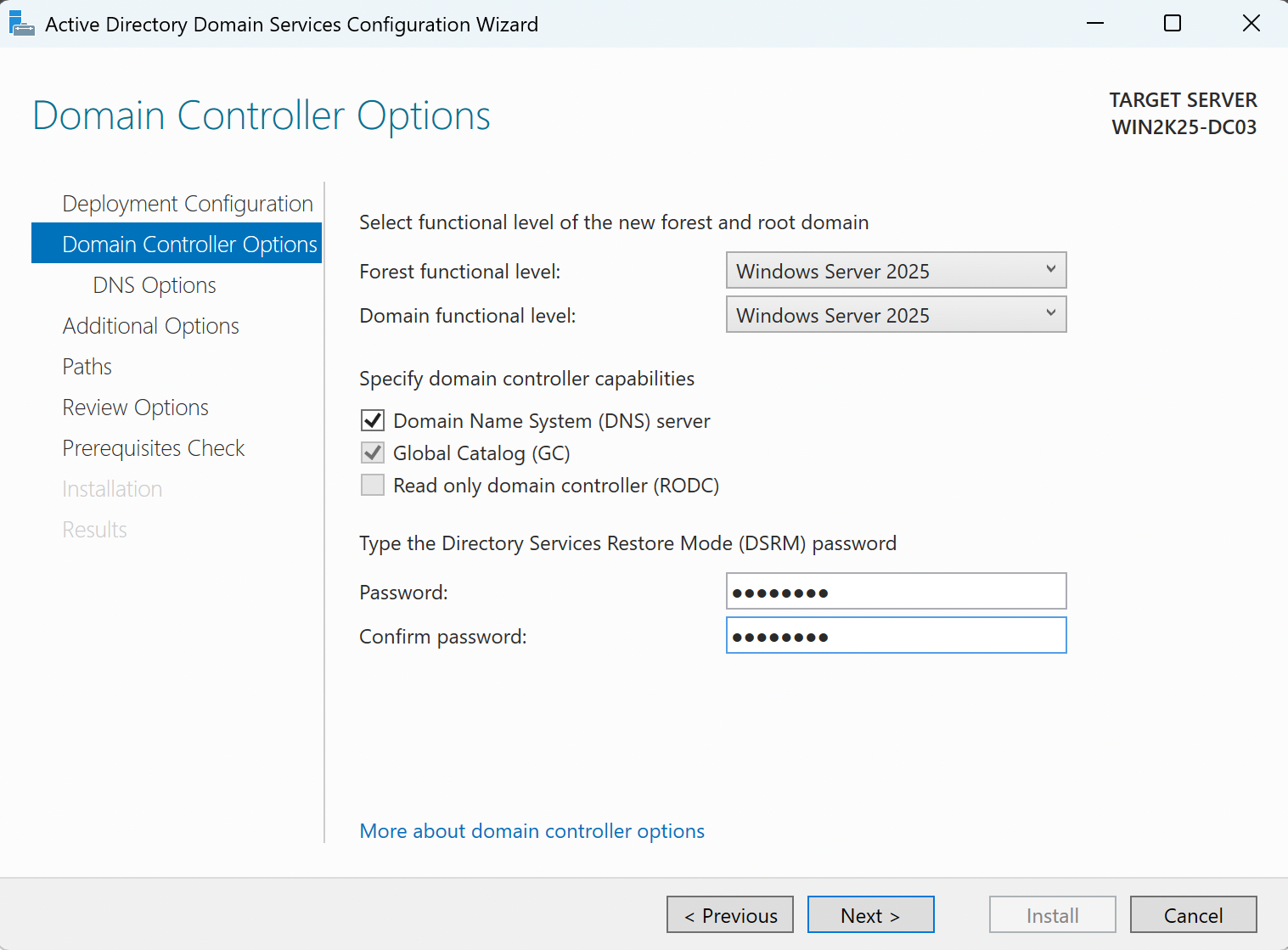
Figure 5. DNS Server, Global Catalog, and DSRM options configured.
5. Reviewing DNS and Active Directory Paths
The promotion wizard displayed a DNS delegation warning. In this isolated lab that warning was expected because I was creating a new forest and there was no existing parent DNS zone where a delegation could be created.
The NetBIOS domain name was MYPERSONAL. I kept the default locations for the Active Directory database, log files, and SYSVOL because the lab did not require custom storage paths.
6. Promoting the Server to a Domain Controller
The prerequisite check completed successfully, so I continued with the promotion. Windows configured the server as the first domain controller for mypersonal.lan and restarted automatically when the process completed.
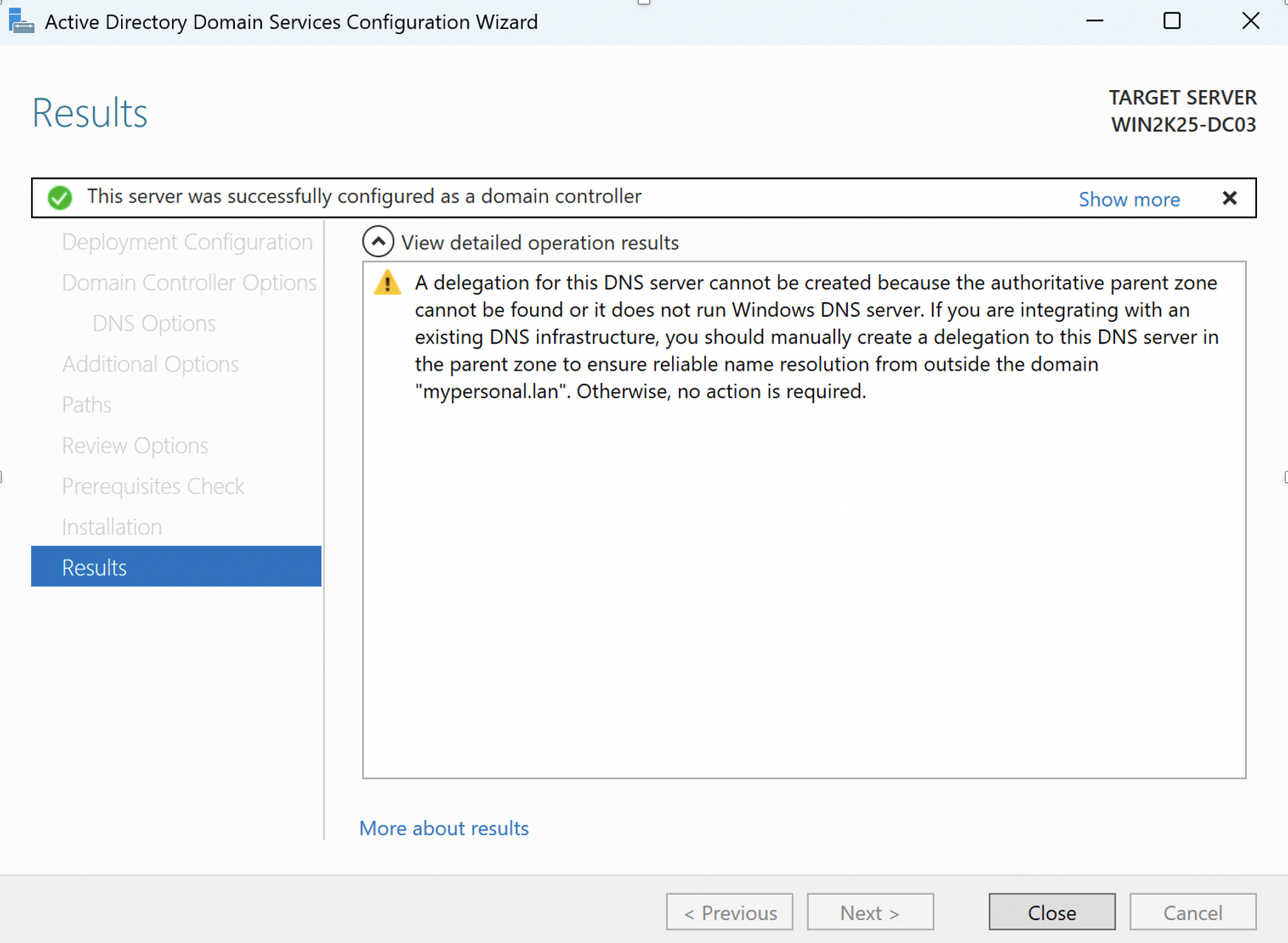
Figure 6. Domain-controller promotion completed successfully.
7. Verifying the Network Configuration After Promotion
A successful promotion screen was not enough for me to consider the deployment complete. I used the following command to verify the final network state:
ipconfig /all
The output confirmed the expected hostname, domain suffix, static address, gateway, and DNS server.
Hostname:       WIN2K25-DC03
Domain suffix:  mypersonal.lan
IPv4 address:   172.16.131.21
Gateway:        172.16.131.2
DNS server:     172.16.131.21
Immediately after promotion, the adapter initially showed 127.0.0.1 as its DNS server. That loopback address still points to the DNS service on the same computer. I later configured the adapter to use the server interface address, 172.16.131.21, and confirmed the final state with ipconfig /all.
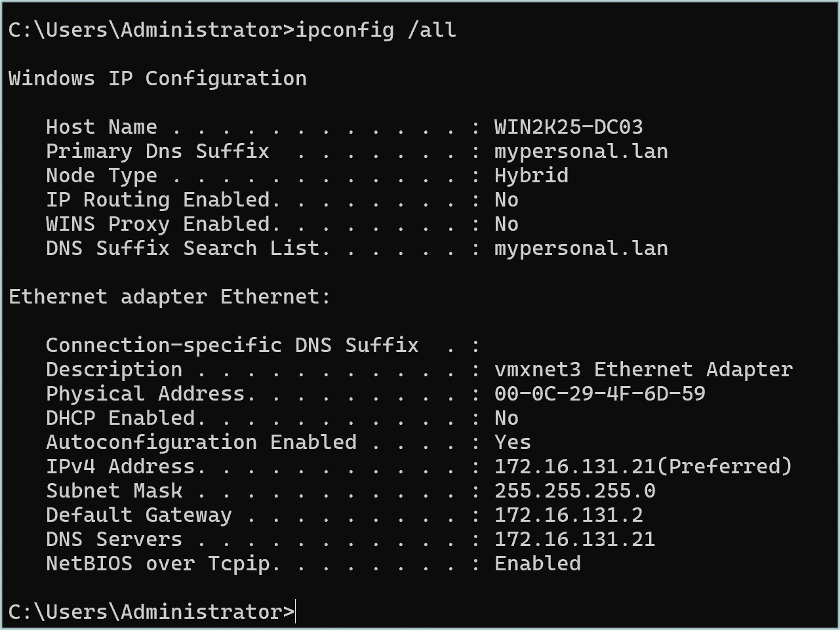
Figure 7. Final network configuration verified after promotion.
8. Verifying Active Directory Management Access
I opened Active Directory Users and Computers and Active Directory Administrative Center to confirm that the new domain could be viewed and managed through the normal administration tools.
The mypersonal.lan domain and its standard containers were visible, providing another layer of verification that the directory was available.
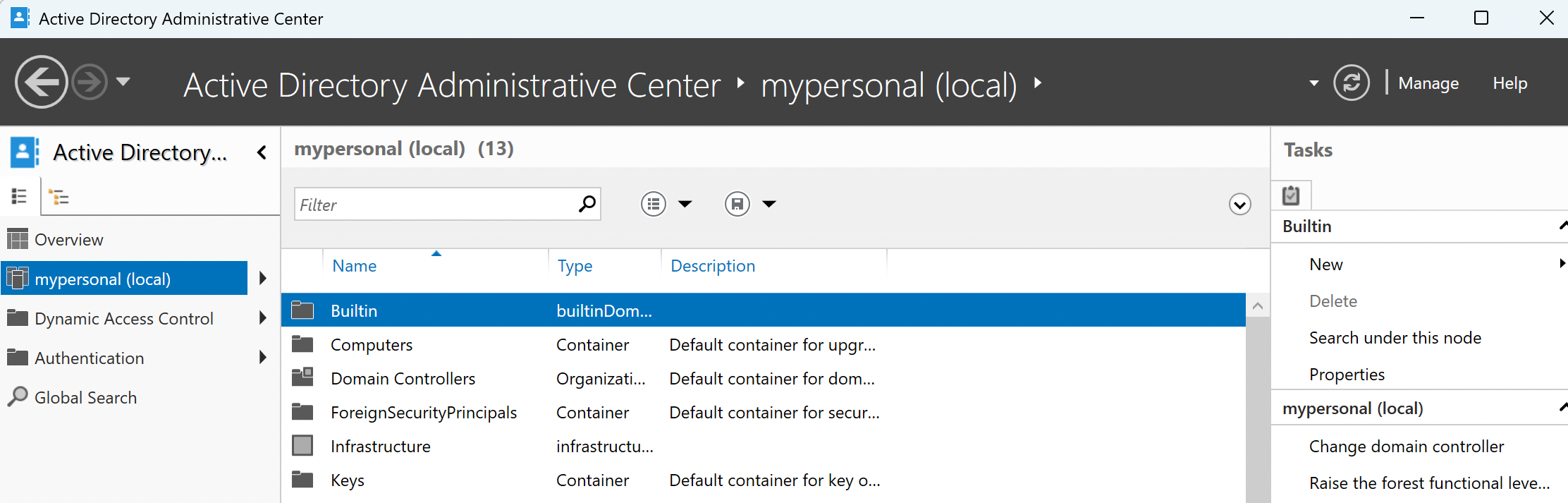
Figure 8. Active Directory Administrative Center displaying the new domain.
9. Understanding the DNS Side of Active Directory
I then opened DNS Manager to review the zones and records created during promotion. This was where the relationship between Active Directory and DNS became much clearer.
DNS in an Active Directory environment is not only about translating hostnames into IP addresses. Domain members also use DNS service records to locate services such as domain controllers and LDAP.
10. Creating a Reverse Lookup Zone
The required forward lookup information already existed, but I also wanted reverse resolution so the server IP address could resolve back to its hostname.
For the 172.16.131.0/24 network, I created an Active Directory-integrated IPv4 reverse lookup zone using the network ID 172.16.131. I selected secure dynamic updates because the zone is stored in Active Directory.
The resulting reverse zone was:
131.16.172.in-addr.arpa
11. Creating and Verifying the PTR Record
After the reverse zone existed, I configured the host record to update its associated PTR record. This created the reverse mapping:
172.16.131.21 -> WIN2K25-DC03.mypersonal.lan
That gave me both directions of DNS resolution: hostname to IP address and IP address back to hostname.
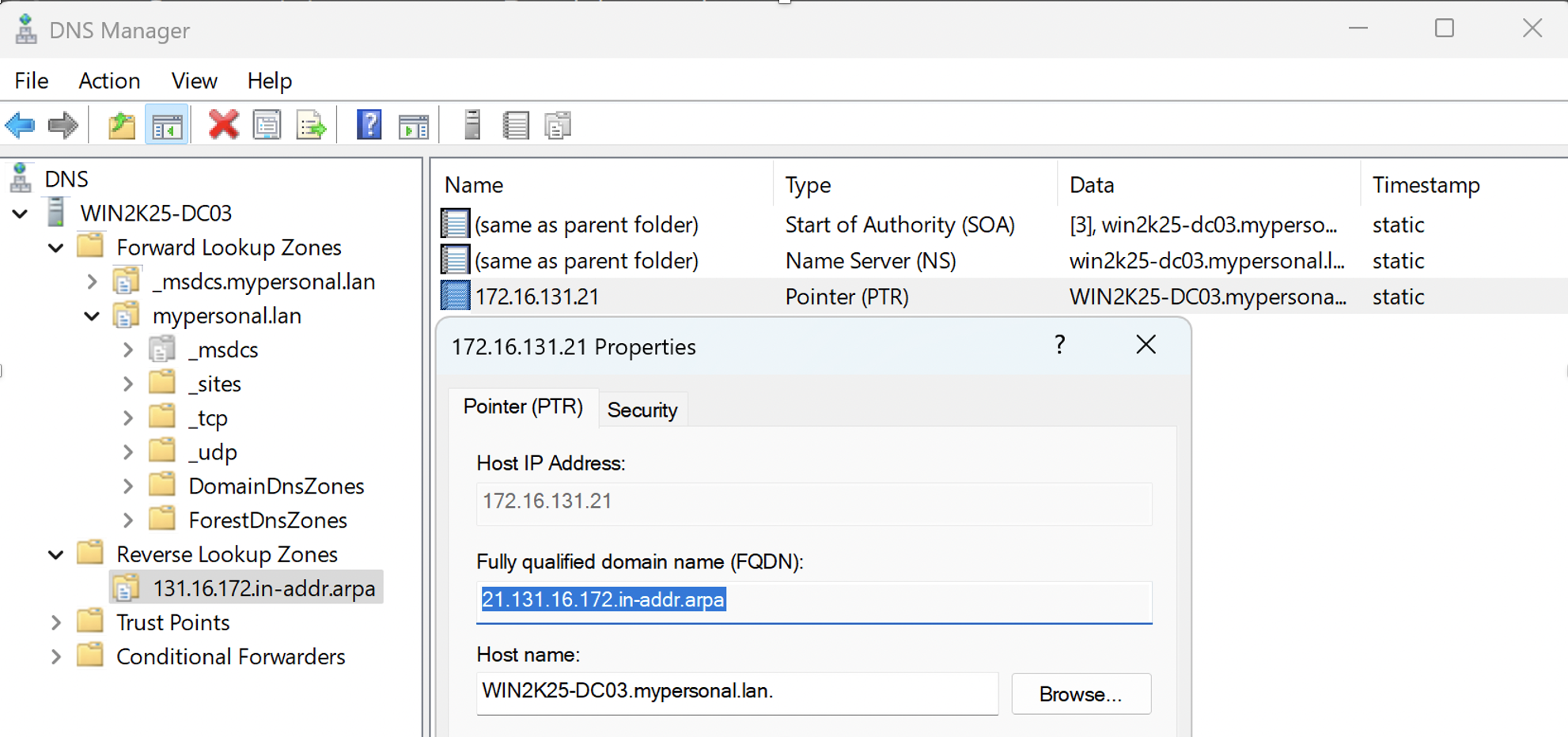
Figure 9. PTR record linking 172.16.131.21 to WIN2K25-DC03.mypersonal.lan.
12. Verifying NETLOGON and SYSVOL
Next, I checked whether the standard domain-controller shares were available by running:
net share
The output included NETLOGON and SYSVOL. These shares support domain functions such as logon scripts and Group Policy.
This is useful evidence, but share availability by itself does not prove that every domain-controller component is healthy, so I continued with additional checks.
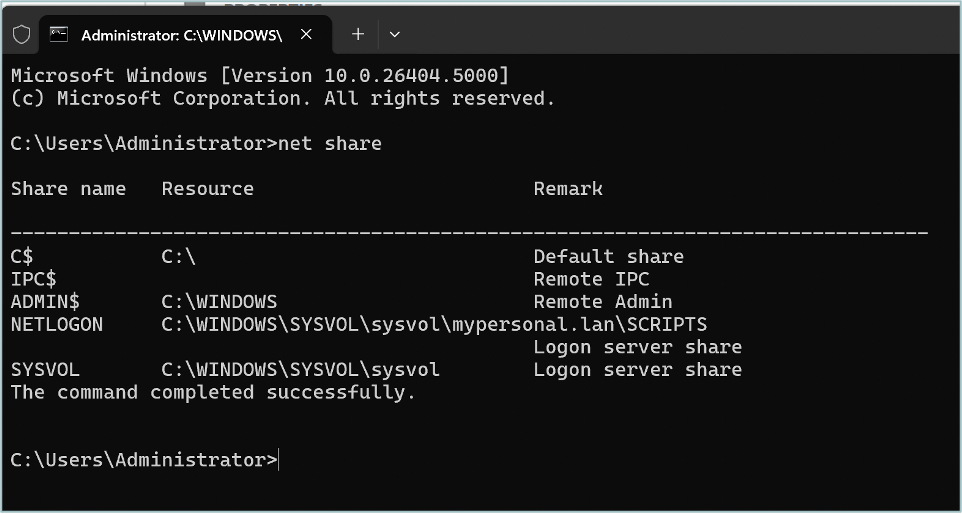
Figure 10. NETLOGON and SYSVOL confirmed with the net share command.
13. Testing Forward DNS Resolution
I tested whether the fully qualified server name resolved to the expected address:
nslookup WIN2K25-DC03.mypersonal.lan
The query returned 172.16.131.21, confirming that the host A record and forward name resolution were working.
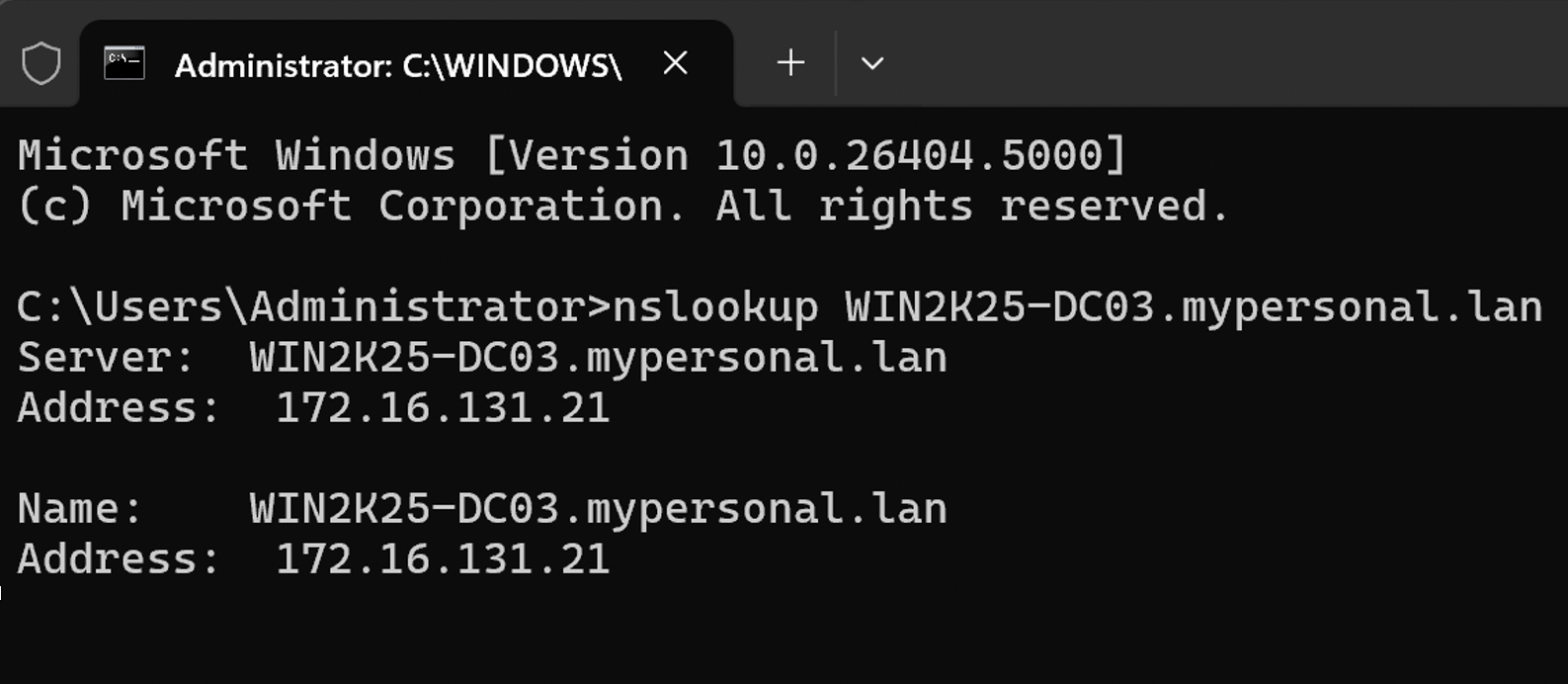
Figure 11. Forward lookup resolving the server name to 172.16.131.21.
14. Testing Reverse DNS Resolution
I then tested the reverse direction:
nslookup 172.16.131.21
The result returned WIN2K25-DC03.mypersonal.lan, confirming that the reverse zone and PTR record were responding correctly.
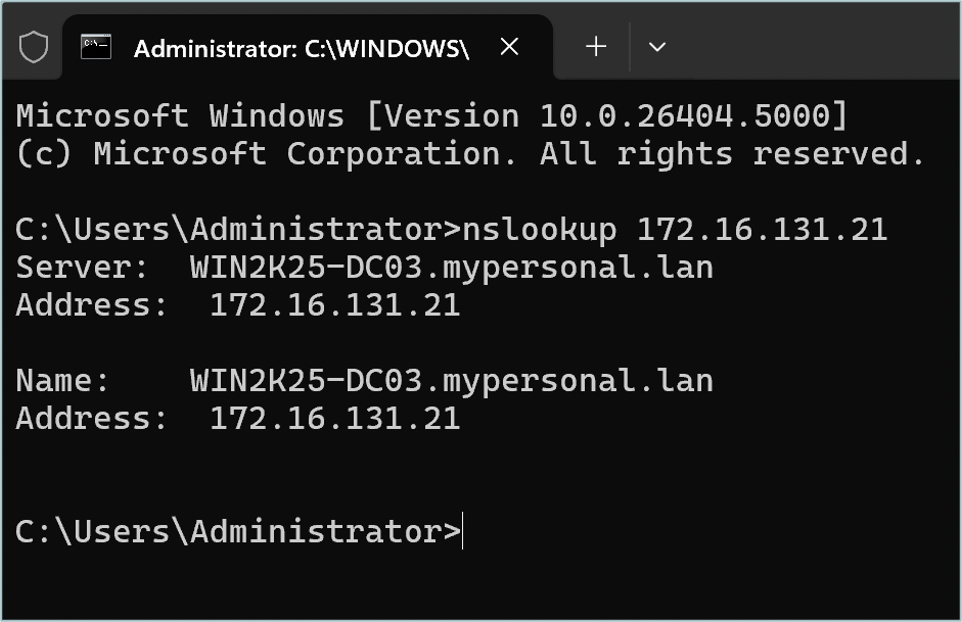
Figure 12. Reverse lookup resolving 172.16.131.21 to the server hostname.
15. Verifying Domain-Controller Discovery with an LDAP SRV Record
One of the most useful checks in the lab was querying the LDAP domain-controller service record:
nslookup -type=SRV _ldap._tcp.dc._msdcs.mypersonal.lan
The query identified WIN2K25-DC03.mypersonal.lan on TCP port 389 and linked the hostname to 172.16.131.21.
This made the role of DNS in Active Directory much more concrete. A domain member is not simply asking for a hostname; it can use SRV records to discover which server provides a particular service.
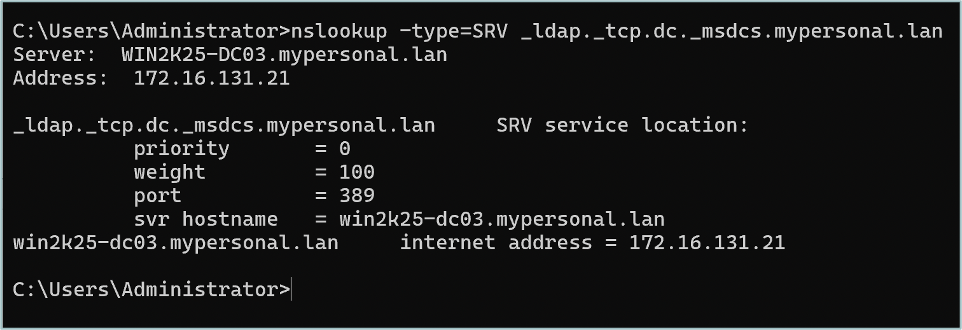
Figure 13. LDAP SRV lookup identifying WIN2K25-DC03 as the domain controller.
16. Performing an Additional Domain Controller Health Check
Finally, I used dcdiag as an additional domain-controller diagnostic. The command output showed successful results for Connectivity, Advertising, SysVolCheck, NetLogons, Replications, Services, DFSREvent, and LocatorCheck.
What I Learned
Active Directory depends heavily on DNS
The LDAP SRV lookup made it clear that DNS is a core part of how domain members discover domain controllers and services.
Networking should be prepared before promotion
A stable hostname and static IP address create a predictable foundation for DNS registration and Active Directory services.
Forward and reverse DNS answer different questions
An A record helps answer “What IP address belongs to this hostname?” while a PTR record helps answer “What hostname belongs to this IP address?”
DSRM credentials have a specific purpose
The DSRM password is intended for directory recovery and is separate from the credentials normally used to administer the domain.
Verification matters as much as installation
The most useful part of the project was validating the environment with multiple independent checks instead of assuming that a successful wizard meant everything was healthy.
What Would Be Different in Production?
This environment was intentionally built as a controlled lab. A production Active Directory deployment would require additional planning for domain naming, multiple domain controllers, redundancy, backups, patching, time synchronization, DNS forwarders, monitoring, least-privilege administration, security baselines, and recovery procedures.
Final Result
At the end of the deployment, I had a working Windows Server 2025 domain controller for the isolated mypersonal.lan environment and a much clearer understanding of how Active Directory, DNS, domain-controller discovery, SYSVOL, NETLOGON, and verification fit together.
The larger project that required this environment is still in progress, so this server deployment is the foundation for the next stage of the lab.